

Learn how to build and integrate powerful Smart Building and BMS projects, Access hardware documentation, feature support, tutorials, and more. Created by multi-BCIA Award-winners.


Categories
HowTo: Manually Rebuild a Tridium JACE via Clean Distribution File
Sometimes, especially when using pre-release software versions, a JACE’s platform daemon will fail to start, making it impossible to configure it using Workbench tools such as the Commissioning Wizard or Dist File Installer. This document details how to restore a JACE in this condition to a “clean” state.
Requirements
You will need the following to complete the recovery steps in this document:
- A terminal emulator such as PuTTY
- A SFTP client such as FileZilla
- Serial-Shell cable for your JACE hardware model
- The Niagara 4 Clean Dist file for your JACE hardware
- A zip file utility such as 7-Zip
Get and Extract Niagara 4 Clean Dist File
The clean dist files can be found in your Niagara4 $system_home directory, or in your Niagara 4 image file.
The clean dists will be in the cleanDist directory or in the overlay\cleanDist directory.
Open the .dist file for your JACE’s platform using a zip utility like 7-Zip, then extract the zip/n4clean.tar.gz file it contains. Also extract the dev/shmem/n4-xxx.image file, where xxx will be different, depending on the JACE’s platform type.
Make a Serial Connection to the JACE
The .PDFs in the N4 documentation set describe how to make a serial connection to a JACE in the “system shell” section(s) of each document.
You will be shown the “login:” prompt. Enter your Platform credentials.
When you successfully log into the JACE, you will see a “#” or “$” shell prompt. This is desired.
You may also see a configuration menu similar to this..
System Shell ———————————————————————–
hostid: [unique to your JACE]
serial number: [unique to your JACE]
build version: 4.1.25.1.2
build date: built on 2015-10-07 19:04:59
system time: Thu Jan 14 16:33:18 UTC 2016
niagara daemon port: 3011
dm0:
inet 192.168.1.140 netmask 0xffffff00 broadcast 192.168.1.255
inet6 fe80::5272:24ff:fe9c:55ba%dm0 prefixlen 64 scopeid 0x2
dm1:
————————————————————————-
1.Update System Time
2.Update Network Settings
3.Ping Host
4.Enable/Disable SSH/SFTP
5.Change Current User Password
6.Change System Passphrase
7.Enable Front Panel USB
8.Configure WIFI
9.Reboot
L.Logout
Enter choice:
Enable SFTP
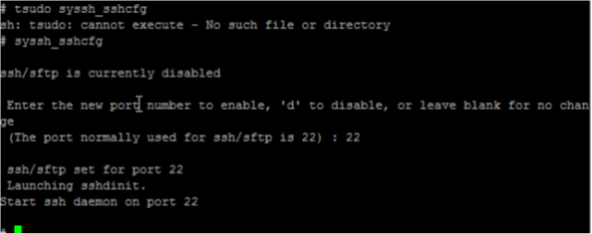
The Secure FTP service is not enabled by default on a JACE. If you did not enable it from the menu in the step above, you will have to start it now. First, try issuing the command tsudo syssh_sshcfg at the shell prompt. If the command fails, issue the syssh_sshcfg command. If it fails again, take these steps…
$ cd /sys/bin and $ ./syssh_sshcfg
…to accomplish the desired result.
Connecting to your Jace via FileZilla
Next you will need to connect to your Jace via using the SFTP navigation string. For example sftp://192.168.1.140 then use the User name and Password for the platform of the Jace. Finally you will need to put the port number in the box to enable the quick connect. For the Jace, the default port for SSH/SFTP is 22. Once all credentials have been filled out press quick connect to connect directly to the Jace.
Transfer the n4clean.tar.gz and OS Image Files using SFTP Client
Using an SFTP client such as FileZilla, transfer the n4clean.tar.gz file that you extracted from the clean dist file to the JACE’s /zip directory.
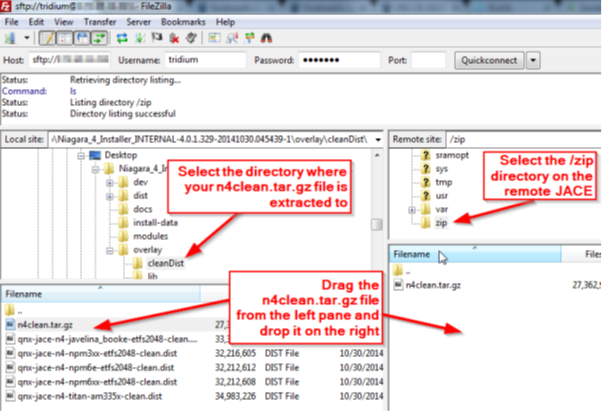
If the transfer fails with a permissions error, issuethe command tsudo chmod 777 /zip at the shell prompt and try it again. This file will be in the Install Files of Niagara.
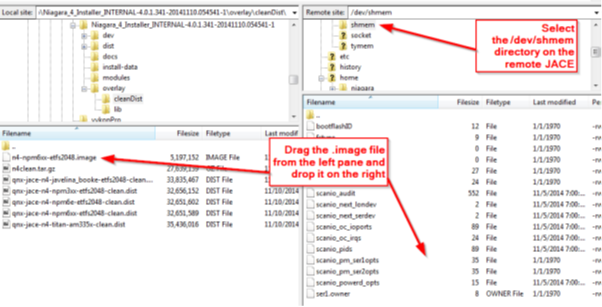
Next, transfer the .image file you extracted from the clean dist file to the JACE’s /dev/shmem directory.
Run osupdate
At the “#” or “$” shell prompt, issue the command osupdate.
Reboot the JACE
Finally, reboot the JACE. You can do this by issuing the command shutdown hf 0 at the shell prompt. When the JACE restarts, it will automatically process the clean dist file and you’ll have a factory condition JACE.

Popular Support Guides

Popular Support Videos on One SightTV
Tridium Niagara 4 Video Training


Access the Industry’s Best Technical Support
Unlock Exclusive Benefits with our Niagara Partner Program including Priority Tech Support




 Supercharge your Niagara 4 Projects with OSS Drivers
Access all 11x of our OSS Niagara 4 Drivers for Free on your Demo Station

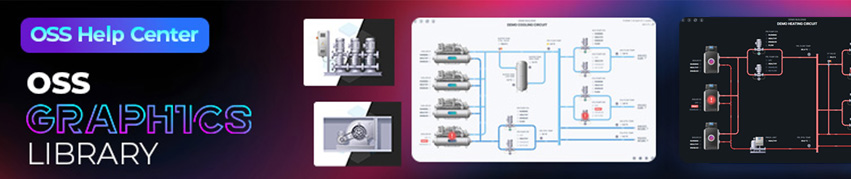
Niagara BMS Graphics made Easy with ossGraphicsLibrary
1857 High Quality BMS SVG’s, with seamless drag-n-drop Design for Rapid Configuration

Explore the full range of Assets and Watch the Video