

Learn how to build and integrate powerful Smart Building and BMS projects, Access hardware documentation, feature support, tutorials, and more. Created by multi-BCIA Award-winners.


Categories
HowTo: Find your Tridium Niagara 4 HOST ID on Windows
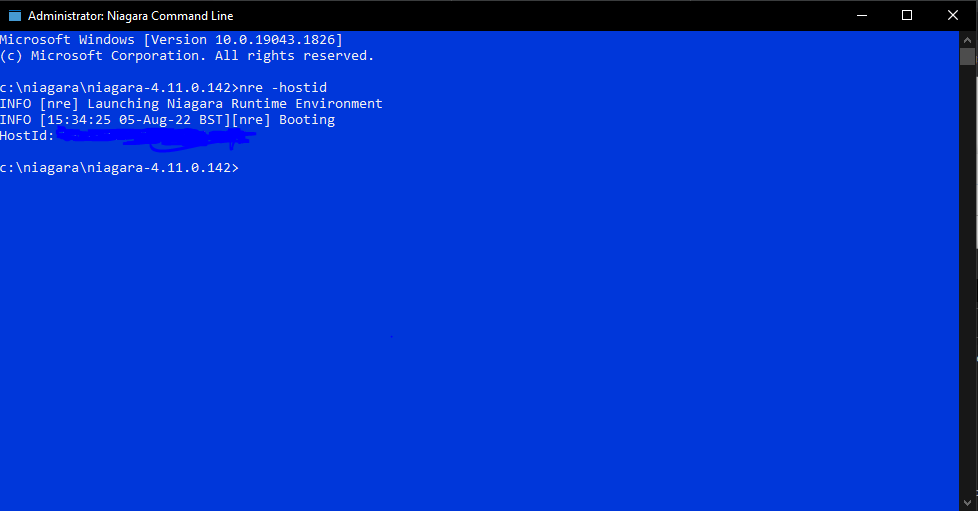
There are multiple ways to locate your system HOST ID for licensing purposes, the simplest being from Platform > Platform Administration or License Manager within Workbench. However if you cannot launch Workbench, your host ID can be obtained via the niagara console command below:
Navigate to the ‘bin’ folder within your Niagara 4 installation folder. The default location is C:\Niagara\Niagara 4.x.x.x.
Inside the bin folder you’ll see a file named ‘console.exe’ launch this and you’ll be met with a blue command prompt.
Type without quotes “nre -hostid” and a few seconds later you’ll be presented with the systems host ID in the format “Win-xxxx-xxxx-xxxx-xxxx.

Popular Support Guides

Popular Support Videos on One SightTV
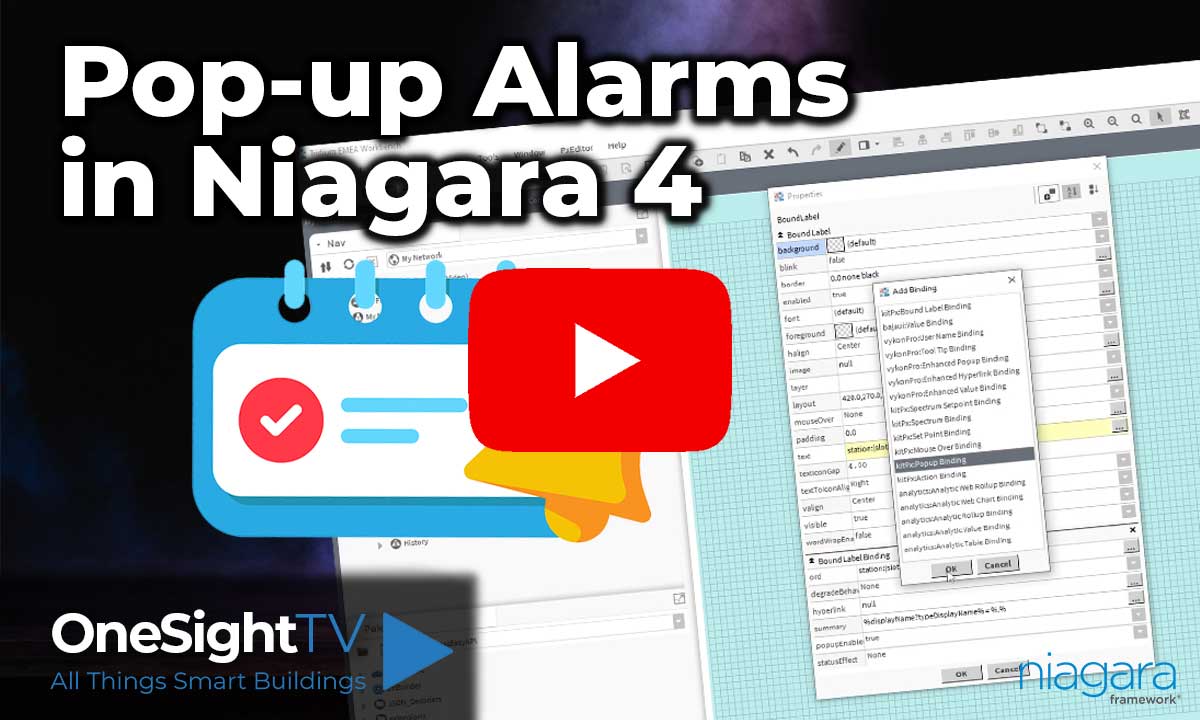
Tridium Niagara 4 Video Training


Access the Industry’s Best Technical Support
Unlock Exclusive Benefits with our Niagara Partner Program including Priority Tech Support



 Supercharge your Niagara 4 Projects with OSS Drivers
Access all 11x of our OSS Niagara 4 Drivers for Free on your Demo Station

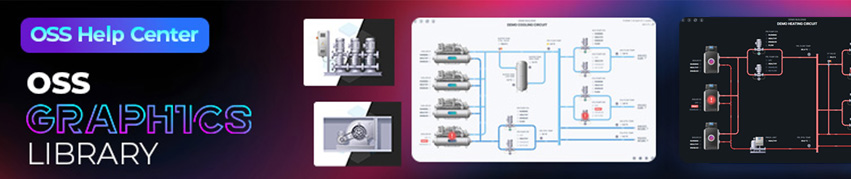
Niagara BMS Graphics made Easy with ossGraphicsLibrary
1857 High Quality BMS SVG’s, with seamless drag-n-drop Design for Rapid Configuration

Explore the full range of Assets and Watch the Video