

Learn how to build and integrate powerful Smart Building and BMS projects, Access hardware documentation, feature support, tutorials, and more. Created by multi-BCIA Award-winners.


Categories
HowTo: Fix Unsychronised License HOST-ID’s in Tridium Niagara 4
Description of issue
Older versions of Niagara 4 and AX could sometimes experience their patform HOST-ID changing after Windows updates. This is due to how Microsoft now periodically roll their operating system build forward in one large update, rather than historically installing lots of small patches. Thus giving Niagara the impression that the computer upon which it installed has changed.
HOST-ID’s on Niagara installs newer than and including AX 3.8u2 & 4.3.58.18 should remain static even after windows updates. This article is applicable only to versions older than these.
The net effect of this problem means that if you have numerious versions of Niagara installed on your machine, new versions as well as those older than the above, then its likeley the older versions will be reporting a different HOST-ID than the newer versions, meaning your current license will not cover the older versions.
We call this problem ‘unsyncronised HOST-ID’s’.
How to Fix
If your AX/N4 installation HOST-ID’s are not synchronised, follow the below procedure:
Firstly make sure that both AX and N4 are running the same architecture (32 vs 64bit). To check this head to the console of each AX and N4 and type in ‘nre -version’ this will then tell you whether the installation is 32vs64). You will need to ensure that all versions installed are for the same architecture.
Then you can head to this link below and download patches.
https://downloads.onesight.solutions/Tridium/MISC_PATCHES/HOSTID_PATCHES.zip
Within file explorer head to the Niagara install folder of the version that is reporting the non-current HOST-ID such as (C:\Niagara\Niagara-*****\bin). Now within the bin folder drop and replace the ‘nre.dll’ file and this will synchronise the licenses to match.
Re-launch Niagara and the HOST-ID should now match the current versions and you will be able to license the install.
Watch the video tutorial here:
Popular Support Guides

Popular Support Videos on One SightTV
Tridium Niagara 4 Video Training


Access the Industry’s Best Technical Support
Unlock Exclusive Benefits with our Niagara Partner Program including Priority Tech Support
 Priority Technical Support with the Diamond Tier of our Partner Program
The widest range of Niagara Portability Products on the market, all in one place
Up to 5x Free Training Days for your organisation from our multi-award winning course offerings
Unlimited access to all of our OSS Niagara 4 Drivers for Project use with our Diamond Tier

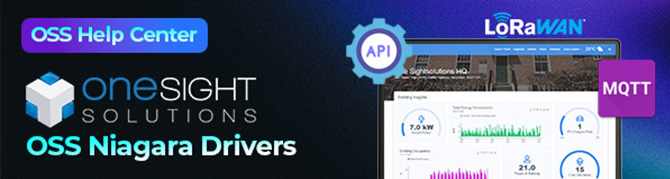

 Supercharge your Niagara 4 Projects with OSS Drivers
Access all 11x of our OSS Niagara 4 Drivers for Free on your Demo Station
 ossEasyAPI: Integrate unlimited API’s into Niagara 4
ossEasyHistoryExport: Quickly export your Niagara 4 meter data into a CSV
ossFTP: Push files or folders from Niagara to a FTP/SFTP server
ossStationBackup: Automate scheduled backups of your Niagara Supervisor station
ossEasyMQTT: Interface with any MQTT Broker with no point limitations
ossRestAPIServer: Provides a HTTP REST API Server running on Niagara 4
ossChirpManager: Seamless integration between a Chirpstack and Niagara system
ossBatchFacets: Easily search, filter and multi-select points for bulk facet changes
ossTeltonikaSMS: Receive SMS Niagara alarms via a Teltonika router
ossWebhook: Configure unlimited webhook points that receive data from parties
ossTeamsTools: Push your Niagara alarms to any Microsoft Teams channel
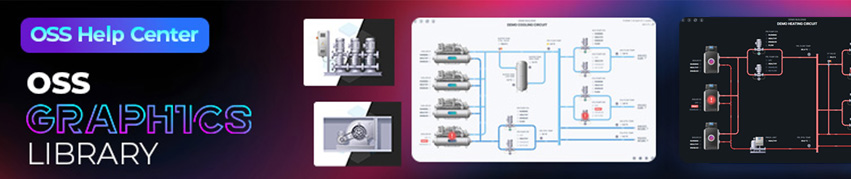
Niagara BMS Graphics made Easy with ossGraphicsLibrary
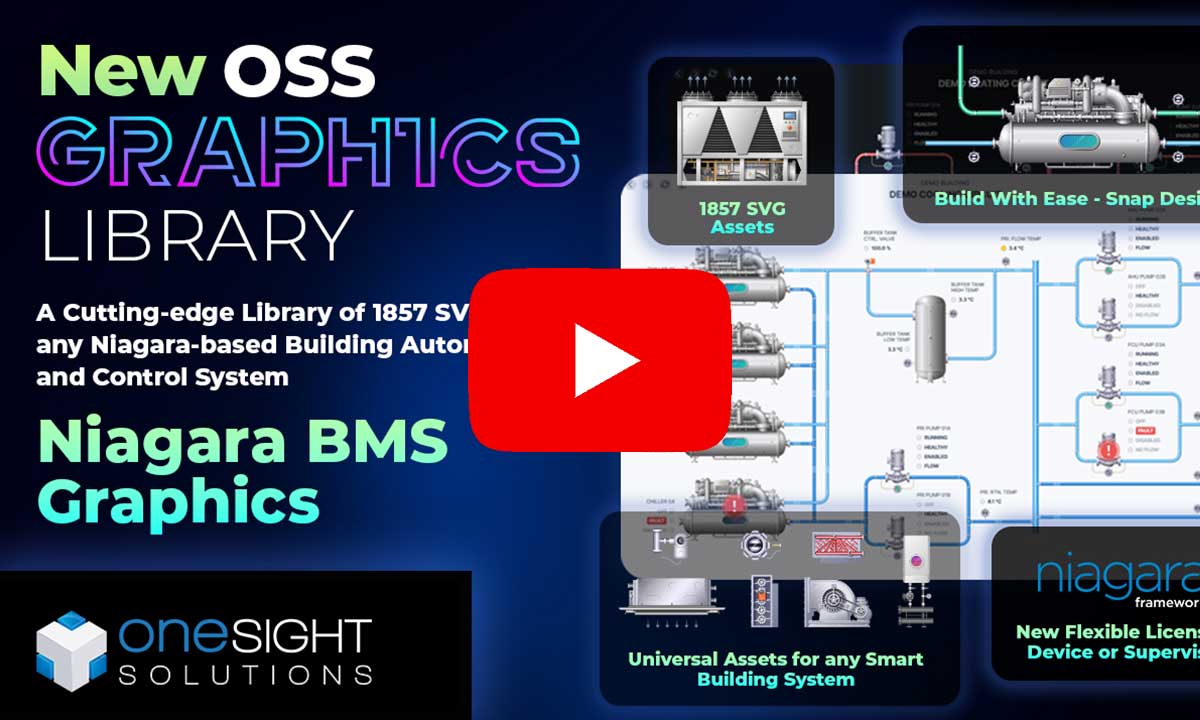
1857 High Quality BMS SVG’s, with seamless drag-n-drop Design for Rapid Configuration
 1857 Universal SVG Assets: State-of-the-art, cross-compatible assets delivering consistant quality at any scale
240+ Animated Assets: Including motion sequences and dynamic real-time data responses
Building with Ease: Simple drag-n-drop elements, with seamless snap building and alignment across all assets
Pre-configured Templates: Over 125 pre-made and configurable templates, saving you up to 25% engineering time
Flexible Licensing: Available to purchase and license per device, or supervisor, giving you bespoke scalability
Compatible with any Niagara-based System: Including Tridium, Trend, Honeywell, CentraLine, Distech, & Johnson
Standardised & Exquisite UI: Delivering a standardised visual across all pages, easily accessible to users & clients
Explore the full range of Assets and Watch the Video