

Learn how to build and integrate powerful Smart Building and BMS projects, Access hardware documentation, feature support, tutorials, and more. Created by multi-BCIA Award-winners.


Categories
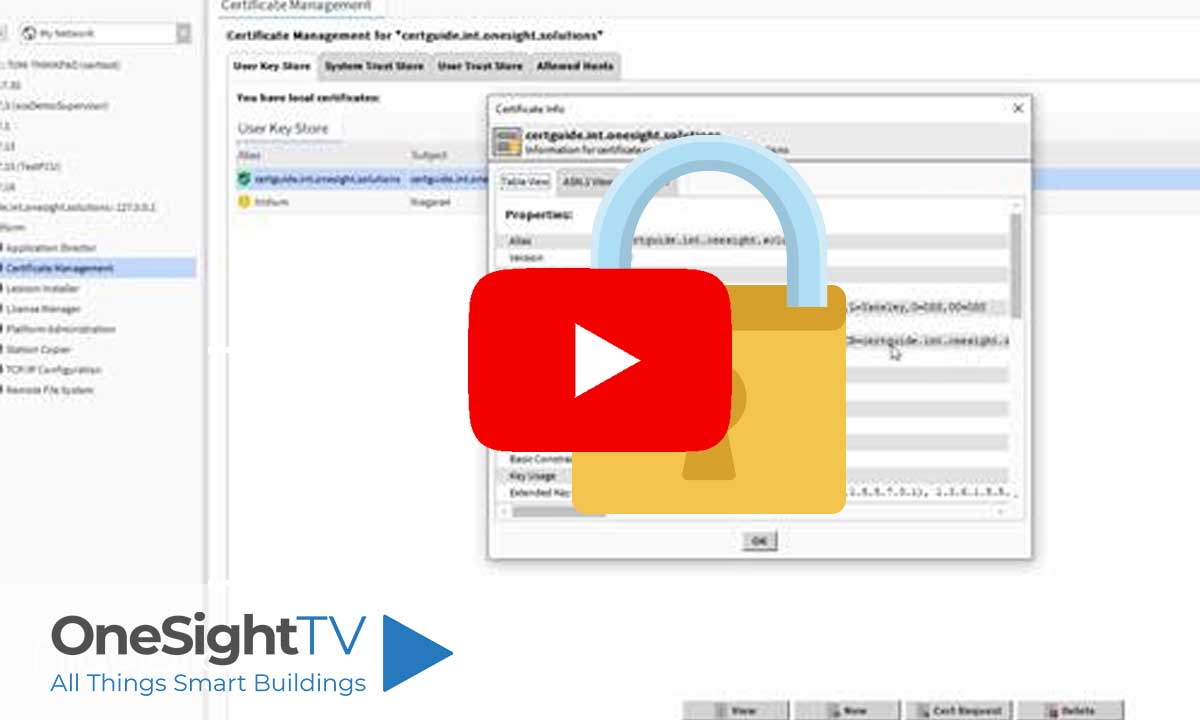
HowTo: Use Signed Certificates in Tridium Niagara 4
The Niagara certificate manager is very particular with how the full chain of trust is imported. What has to happen is as follows:
1. Generate a certificate in Niagara certificate manager
2. Export the private key and keep it safe. This is a .PEM file.
3. Create a signing request based on the newly created certificate.
4. Give this CSR to your CA of choice. I have tested with GoDaddy and Comodo, but there are many more. These two work natively in PEM format so you don’t have to mess around converting certificate formats.
5. Download the signed cert and all intermediates + CA root certs from the CA. (With GoDaddy, they bundle the intermediates and root into a single PEM formatted .CER file for you).
6. Combine the signed certificate, intermediates and root into a single PEM formatted .PEM file. I also include private key in the top of the chain file, although this isn’t required since the original signing request has been generated from Niagara and therefore Niagara already has the private key. An example chain file is attached for reference, however I have purposefully edited the key & cert so they cannot be used. The process to make a chain file is as follows:
a. Open a new text file, copy the private key from the original Niagara export PEM file into the top
b. Copy the signed certificate you got from the CA into the file below the private key.
c. Copy any intermediate certificates from the CA below the signed cert that you just copied in.
d. Copy the root ca certificate at the bottom of the file. Like I say, in the case of GoDaddy, root and intermediates are bundled for you, so copy all from that file into the new file below the signed cert you copied in.
e. Save this file with the .PEM extension. For example MYCERTIFICATENAME.PEM
7. Open the certificate manager on the JACE and go to System Trust Store. Import the chain file and you should be shown a list of certificates to import. Select only the intermediates and the root. Import them.
8. Go to the User Key Store and click import. Choose the chain file. This should show you the signed certificate with the correct domain name. Import this. You should see the green tick against your certificate to show its now trusted (it may have already gone green).
9. Go to web service / fox service / platform admin and set them all to use the new certificate.
For a free 90 day Comodo SSL certificate, go here:
https://ssl.comodo.com/free-ssl-certificate.php
An example PEM chain file is attached or can be downloaded HERE.
Watch the video tutorial here:


Popular Support Guides

Popular Support Videos on One SightTV


Tridium Niagara 4 Video Training



Access the Industry’s Best Technical Support
Unlock Exclusive Benefits with our Niagara Partner Program including Priority Tech Support




 Supercharge your Niagara 4 Projects with OSS Drivers
Access all 11x of our OSS Niagara 4 Drivers for Free on your Demo Station


Niagara BMS Graphics made Easy with ossGraphicsLibrary
1857 High Quality BMS SVG’s, with seamless drag-n-drop Design for Rapid Configuration

Explore the full range of Assets and Watch the Video