

Learn how to build and integrate powerful Smart Building and BMS projects, Access hardware documentation, feature support, tutorials, and more. Created by multi-BCIA Award-winners.


Categories
HowTo: Make a Local USB/Serial Connection to JACE 8000
If a JACE 8000 becomes unreachable over the network then the first point of call is to connect to the device over a local serial connection to see what the status is, and perform any rectifying configuration changes if possible.
Requirements
- Micro USB cable
- PuTTY application – https://www.putty.org/
How to make a serial connection to the JACE 8000
Connect the USB cable between the controller’s Debug port and the USB port you are using on your PC.
On your PC, start your terminal emulation software. For example to start PuTTY from the Windows
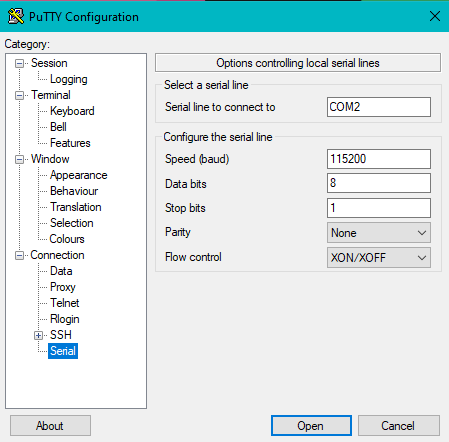
In the tree in the PuTTY Configuration dialog, expand Connection and click Serial.
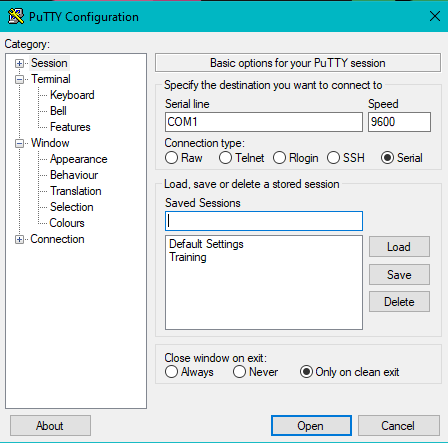
Set the “Serial line to connect to” for your PC’s (USB) COM port to use. For example, COM7. You can locate the COM port being used within Device Manager on windows.
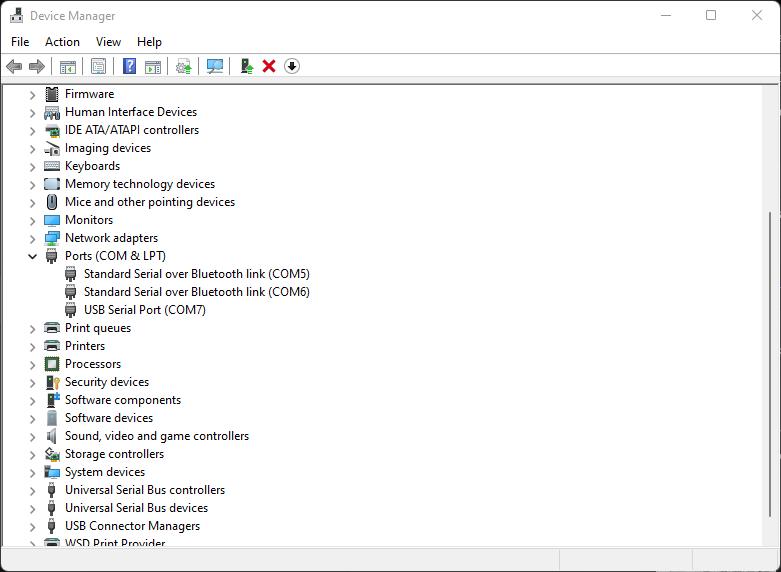
How to get to Device Manger on windows.
- Press Windows key + R to open the Run command dialog box.
- Type devmgmt.msc and press Enter to open the Device Manager.
This will open up a new window, scroll down and drop down the menu Ports (COM & LPT) to reveal COM ports in use. For example bellow port COM7
In the tree in the PuTTY Configuration dialog, click Session and then click/select the “Connection type” as Serial
Set the “Configure the serial line” fields as follows: • Speed (baud): 115200 • Data bits: 8 • Stop bits: 1 • Parity: None • Flow control: None.
Once all has been configured click on Open.
At the login prompt, enter a platform user name, and at the password prompt, the platform password.
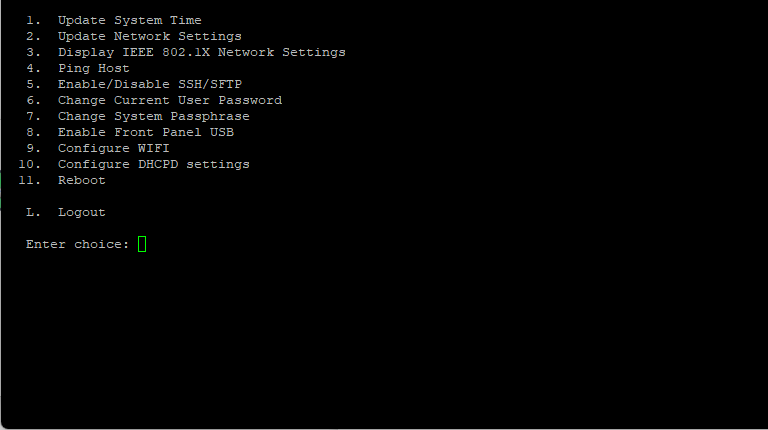
When finished making platform changes from the system shell, either reboot if required, or logout and disconnect the USB cable.
Default Credentials
Out of the box, a JACE 8000 comes configured as follows for reference.
Default IP address: 192.168.1.140
User: tridium
Password: niagara
Popular Support Guides

Popular Support Videos on One SightTV
Tridium Niagara 4 Video Training


Access the Industry’s Best Technical Support
Unlock Exclusive Benefits with our Niagara Partner Program including Priority Tech Support



 Supercharge your Niagara 4 Projects with OSS Drivers
Access all 11x of our OSS Niagara 4 Drivers for Free on your Demo Station

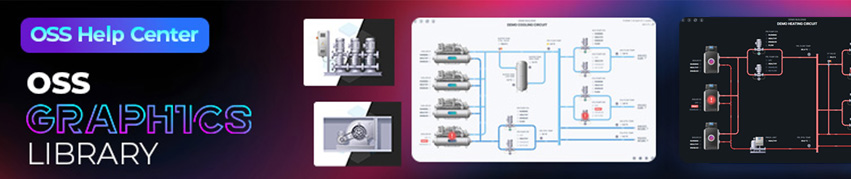
Niagara BMS Graphics made Easy with ossGraphicsLibrary
1857 High Quality BMS SVG’s, with seamless drag-n-drop Design for Rapid Configuration

Explore the full range of Assets and Watch the Video