

Learn how to build and integrate powerful Smart Building and BMS projects, Access hardware documentation, feature support, tutorials, and more. Created by multi-BCIA Award-winners.


Categories
HowTo: Fix Unsychronised License HOST-ID’s in Tridium Niagara 4
Description of issue
Older versions of Niagara 4 and AX could sometimes experience their patform HOST-ID changing after Windows updates. This is due to how Microsoft now periodically roll their operating system build forward in one large update, rather than historically installing lots of small patches. Thus giving Niagara the impression that the computer upon which it installed has changed.
HOST-ID’s on Niagara installs newer than and including AX 3.8u2 & 4.3.58.18 should remain static even after windows updates. This article is applicable only to versions older than these.
The net effect of this problem means that if you have numerious versions of Niagara installed on your machine, new versions as well as those older than the above, then its likeley the older versions will be reporting a different HOST-ID than the newer versions, meaning your current license will not cover the older versions.
We call this problem ‘unsyncronised HOST-ID’s’.
How to Fix
If your AX/N4 installation HOST-ID’s are not synchronised, follow the below procedure:
Firstly make sure that both AX and N4 are running the same architecture (32 vs 64bit). To check this head to the console of each AX and N4 and type in ‘nre -version’ this will then tell you whether the installation is 32vs64). You will need to ensure that all versions installed are for the same architecture.
Then you can head to this link below and download patches.
https://downloads.onesight.solutions/Tridium/MISC_PATCHES/HOSTID_PATCHES.zip
Within file explorer head to the Niagara install folder of the version that is reporting the non-current HOST-ID such as (C:\Niagara\Niagara-*****\bin). Now within the bin folder drop and replace the ‘nre.dll’ file and this will synchronise the licenses to match.
Re-launch Niagara and the HOST-ID should now match the current versions and you will be able to license the install.
Watch the video tutorial here:
Popular Support Guides

Popular Support Videos on One SightTV
Tridium Niagara 4 Video Training


Access the Industry’s Best Technical Support
Unlock Exclusive Benefits with our Niagara Partner Program including Priority Tech Support



 Supercharge your Niagara 4 Projects with OSS Drivers
Access all 11x of our OSS Niagara 4 Drivers for Free on your Demo Station

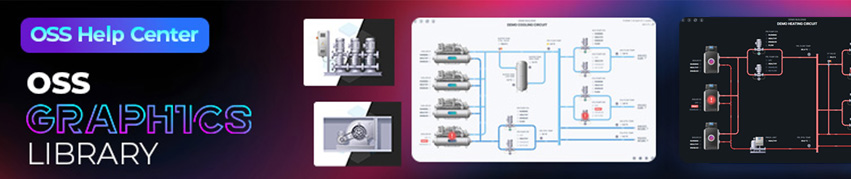
Niagara BMS Graphics made Easy with ossGraphicsLibrary
1857 High Quality BMS SVG’s, with seamless drag-n-drop Design for Rapid Configuration

Explore the full range of Assets and Watch the Video