

Learn how to build and integrate powerful Smart Building and BMS projects, Access hardware documentation, feature support, tutorials, and more. Created by multi-BCIA Award-winners.


Categories
HowTo: Commissioning a Phoenix Contact ILC 2050 in Niagara 4
Before you can commission a Phoenix Contact ILC2050 in Niagara, you need to download some additional software. This guide will help you through the process.
The first thing to do is to download the N4 Emalytics HW / Niagara Addons Support software for the version of Niagara you are using. This can be found on the Phoenix Contact product page below. The current release is under ‘Software’, previous releases are under ‘Software Archive’.
https://www.phoenixcontact.com/en-gb/products/controller-ilc-2050-bi-2403160
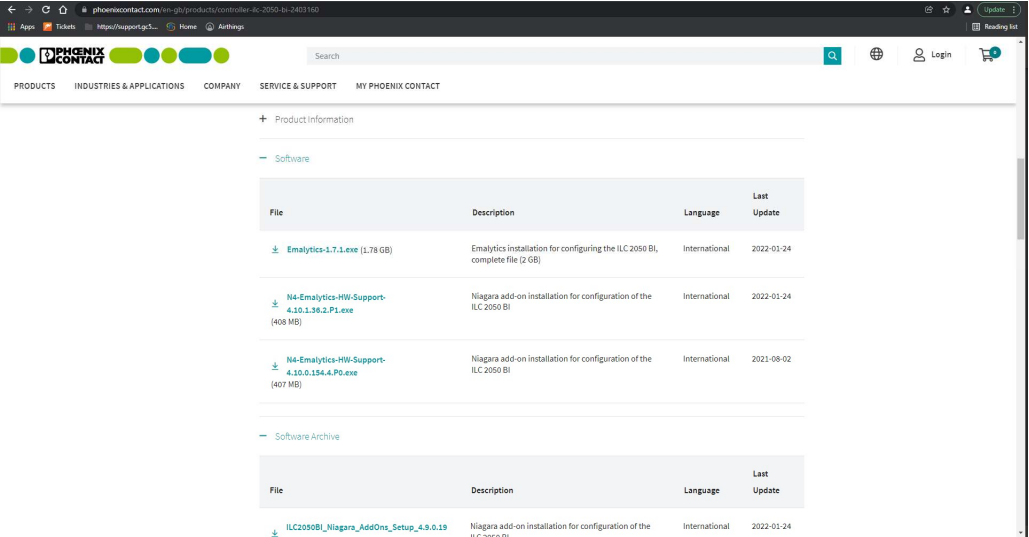
Once it is downloaded run the program.
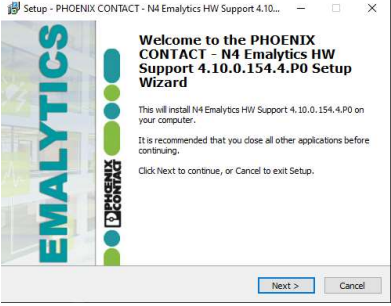
Go through the steps and select the version on N4 you are running, click next and then install.
It will then complete the set up and you can click finish.
Once completed, run the platform daemon and open workbench, connect to the ILC.
Default credentials are below.
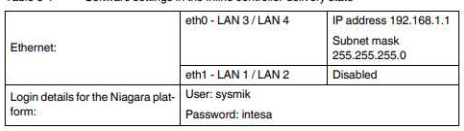
Once you have done all that it will be ready to start the commissioning wizard as usual.
Popular Support Guides

Popular Support Videos on One SightTV
Tridium Niagara 4 Video Training


Access the Industry’s Best Technical Support
Unlock Exclusive Benefits with our Niagara Partner Program including Priority Tech Support



 Supercharge your Niagara 4 Projects with OSS Drivers
Access all 11x of our OSS Niagara 4 Drivers for Free on your Demo Station

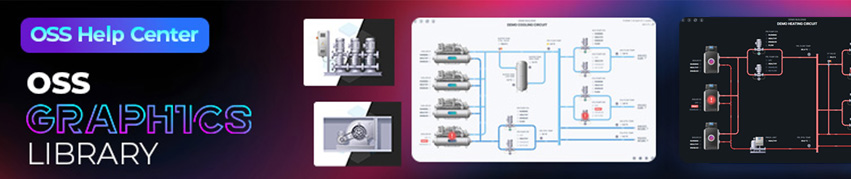
Niagara BMS Graphics made Easy with ossGraphicsLibrary
1857 High Quality BMS SVG’s, with seamless drag-n-drop Design for Rapid Configuration

Explore the full range of Assets and Watch the Video