

Learn how to build and integrate powerful Smart Building and BMS projects, Access hardware documentation, feature support, tutorials, and more. Created by multi-BCIA Award-winners.


Categories
HowTo: Overcome Lost Tridium Niagara 4 Station Credentials
This article will walk you through the process of adding a new user to a station in your Niagara localhost from a station backup, a copy you have received or just lost the credentials for.
This guide relevant is if you have access to a Platform but not a station.
Step 1: Make sure that the station you want to access is in the Stations folder under User Home > Stations. If it’s not there, you can move the station to the desired location using the station copier in the platform or wherever the station is currently located. Just remember to back up everything to be on the safe side.
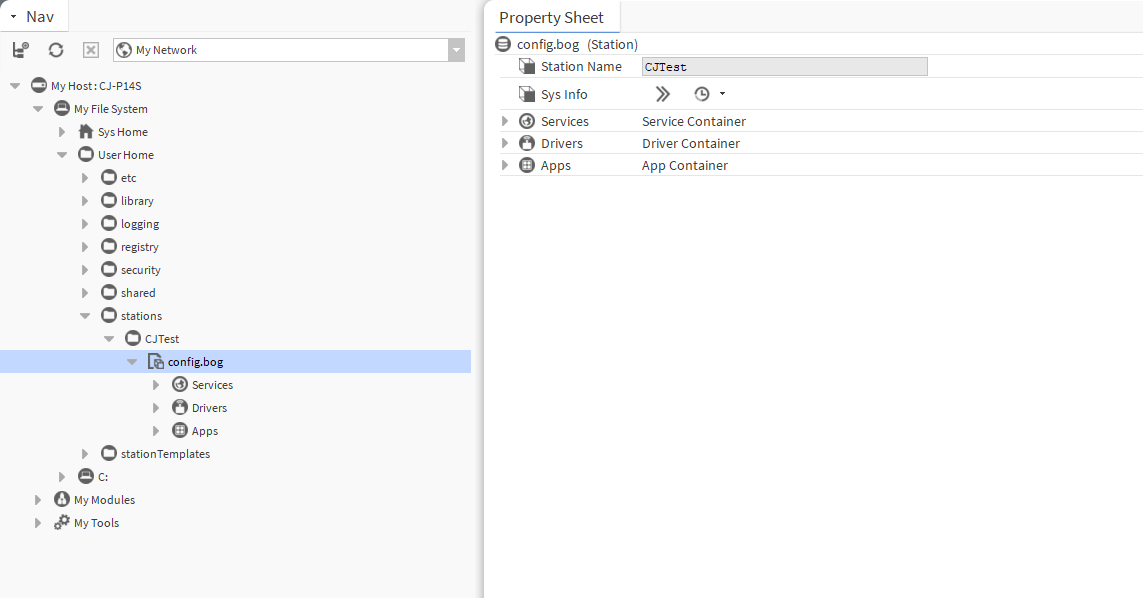
Step 2: The Second step of this process is to open the config.bog file of the station you are tying to edit. To do this navigate User Home > Desired Station > double click config.bog
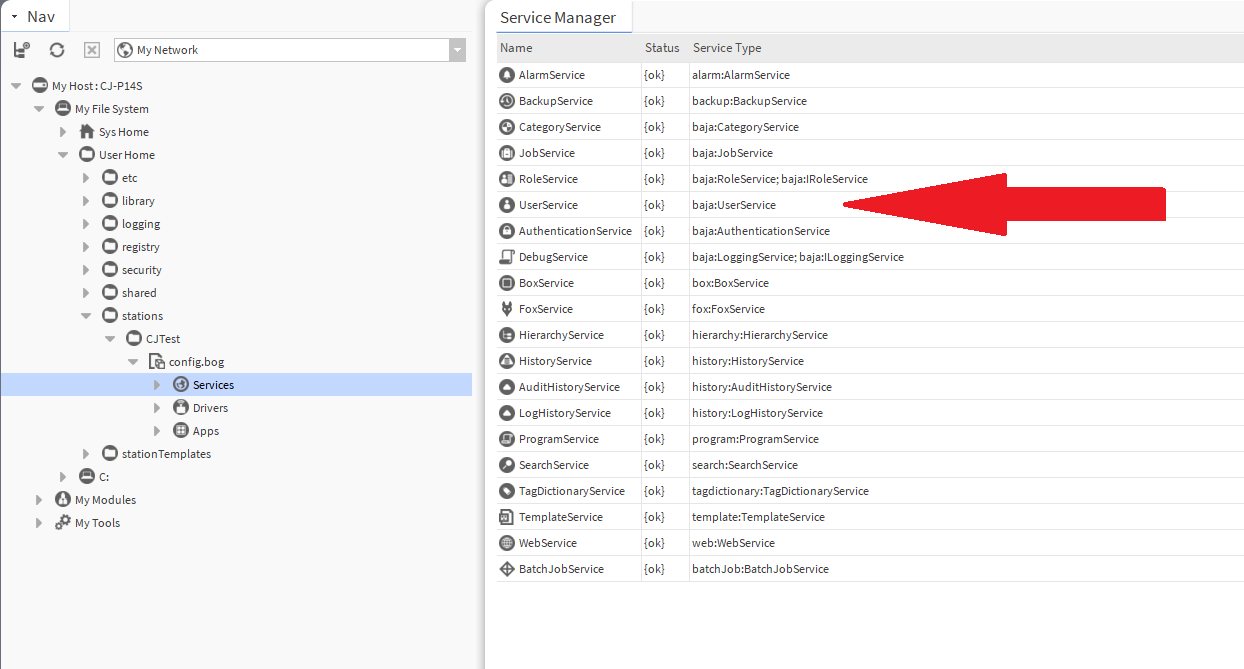
Step 3: To provide more details about the user service, proceed by expanding the services option and double-clicking on the user service. This can be done by navigating to Services > User Service.
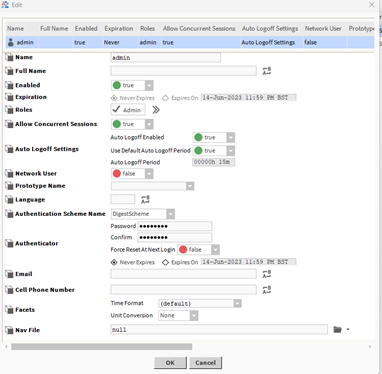
Step 4: To create the new user, click on the ‘New‘ button and proceed to fill in the necessary details. You can choose any desired username, but please ensure that the password meets Niagara’s password requirements, which include a minimum of 10 characters, at least one capital letter, and a special character such as ‘!?’.
To ensure that the user has the necessary rights, make sure to check ‘Admin‘ in the Roles option. This will grant full access to the system with the new user you have created.
Step 5: It is crucial to save the edited bog file to ensure that the changes take effect properly. To save the bog file you are currently editing, right-click on it and select ‘Save‘. Alternatively, you can also use the save icon located in the top bar of your workbench.”

Step 6: At this point, you can proceed to copy the station back to your Jace or any other device you desire to access it from. Once copied, simply enter the credentials you have previously created to gain access.
Popular Support Guides

Popular Support Videos on One SightTV
Tridium Niagara 4 Video Training


Access the Industry’s Best Technical Support
Unlock Exclusive Benefits with our Niagara Partner Program including Priority Tech Support
 Priority Technical Support with the Diamond Tier of our Partner Program
The widest range of Niagara Portability Products on the market, all in one place
Up to 5x Free Training Days for your organisation from our multi-award winning course offerings
Unlimited access to all of our OSS Niagara 4 Drivers for Project use with our Diamond Tier


 Supercharge your Niagara 4 Projects with OSS Drivers
Access all 11x of our OSS Niagara 4 Drivers for Free on your Demo Station
 ossEasyAPI: Integrate unlimited API’s into Niagara 4
ossEasyHistoryExport: Quickly export your Niagara 4 meter data into a CSV
ossFTP: Push files or folders from Niagara to a FTP/SFTP server
ossStationBackup: Automate scheduled backups of your Niagara Supervisor station
ossEasyMQTT: Interface with any MQTT Broker with no point limitations
ossRestAPIServer: Provides a HTTP REST API Server running on Niagara 4
ossChirpManager: Seamless integration between a Chirpstack and Niagara system
ossBatchFacets: Easily search, filter and multi-select points for bulk facet changes
ossTeltonikaSMS: Receive SMS Niagara alarms via a Teltonika router
ossWebhook: Configure unlimited webhook points that receive data from parties
ossTeamsTools: Push your Niagara alarms to any Microsoft Teams channel
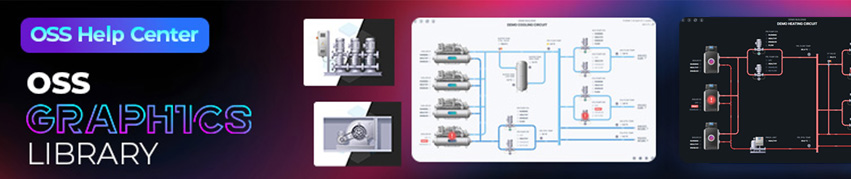
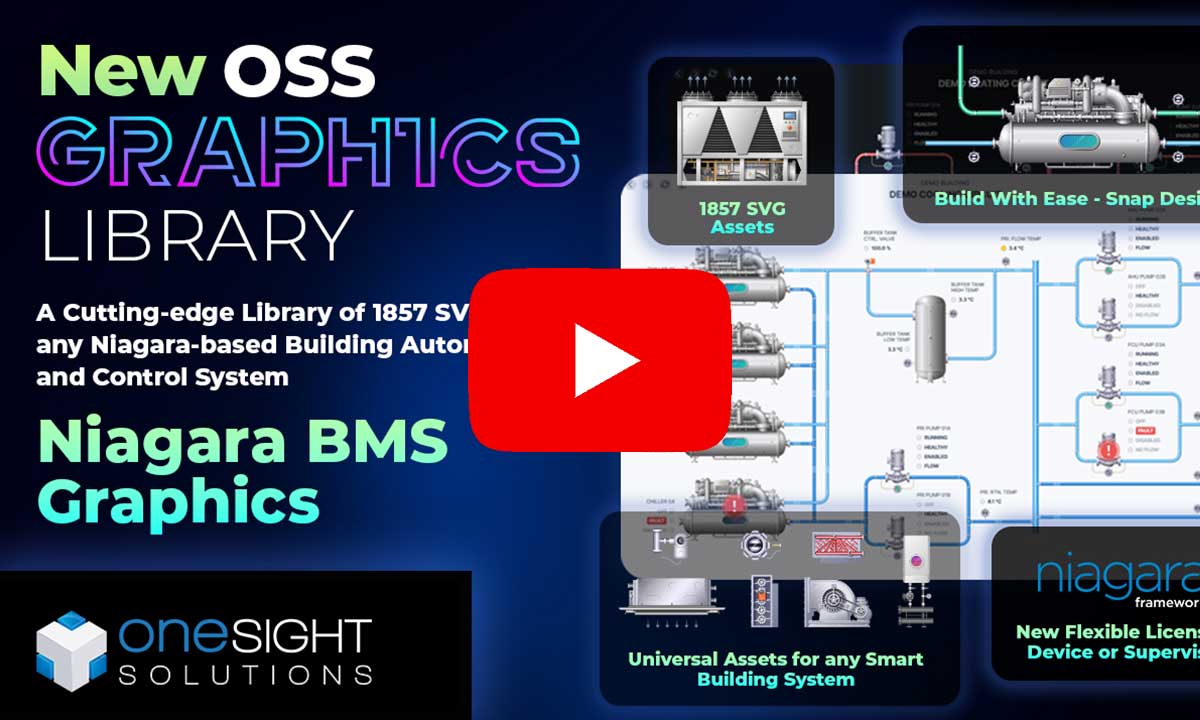
Niagara BMS Graphics made Easy with ossGraphicsLibrary
1857 High Quality BMS SVG’s, with seamless drag-n-drop Design for Rapid Configuration
 1857 Universal SVG Assets: State-of-the-art, cross-compatible assets delivering consistant quality at any scale
240+ Animated Assets: Including motion sequences and dynamic real-time data responses
Building with Ease: Simple drag-n-drop elements, with seamless snap building and alignment across all assets
Pre-configured Templates: Over 125 pre-made and configurable templates, saving you up to 25% engineering time
Flexible Licensing: Available to purchase and license per device, or supervisor, giving you bespoke scalability
Compatible with any Niagara-based System: Including Tridium, Trend, Honeywell, CentraLine, Distech, & Johnson
Standardised & Exquisite UI: Delivering a standardised visual across all pages, easily accessible to users & clients
Explore the full range of Assets and Watch the Video